Verizon has a good thing going with its Droid branding for its lineup of Android-powered smartphones. The branding and advertising is distinctive (if, um, slightly disconcerting), and from all indications, the Droid-branded phones are selling well.
Perhaps the catchiest part of the ads is the robotic sounding voice that says "Droid" at the very beginning of the ads. If you have a Mac kicking around, though, you can re-create this catchphrase using OS X's text-to-speech features. All you need to do is open the Terminal in the utilities folder, enter the following command (via Twitter), and hit the Enter key:
say -v cellos droid
Your Mac will say the word "Droid" using the built-in Cellos voice. As far as I can tell, the Verizon ads use the Cellos voice, though it may have been slightly altered in post-production.
If you want to kick it up a notch, you can save this statement-of-robotic-self as an audio file. To do so, you have two options.
One method is to use Automator. Open Automator (in the Utilities folder), and create a new workflow. Within Automator, do a search for the "Get Specified Text" action and drag it into the "Workflow" pane (the rightmost pane in the Automator window), and enter "Droid" into the text box for that action.
Next, do a search for "Text to Audio File," and drag that action into the Workflow pane. Change the System Voice drop-down to Cellos, and specify a file name and where you want the file to live. You should end up with something that looks like this:
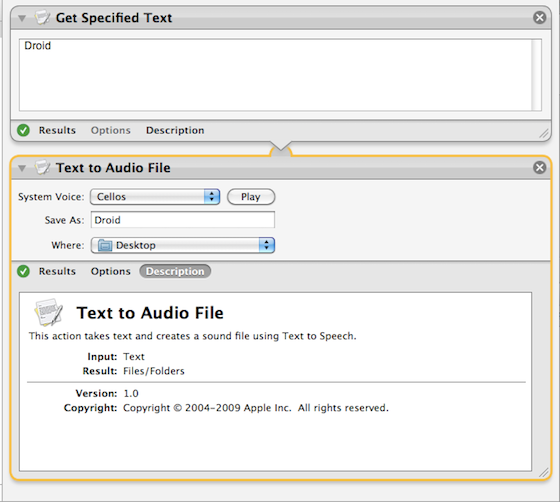
Finally, press the Run button in the upper-right corner of the Automator window; Automator will do its thing and spit out a .aiff audio file of the spoken text.
If GUIs aren't your thing, there's the Terminal method. Enter the following into the Terminal and press enter:
say -v cellos -o out.aiff droid
This will save an .aiff file of the spoken text in your Home folder.
From there, you can set this as your Mac's alert sound: Go to your "Home" folder, open the Library folder, and then open the Sounds folder. Drop the Droid audio file here. The next time you open the Sound pane in System Preferences, you'll have your ridiculously geeky alert sound.
[via @ModusOperandi on Twitter]
Follow GeekTech on Twitter or Facebook , or subscribe to our RSS feed .
TweetView the original article here
 So, Apple's talked about putting the iPhone on Verizon, Verizon wants the phone... why can't we get these two crazy kids together? Well, Verizon CEO Ivan Seidenberg touched on that topic in a talk to investors at the Goldman Sachs conference today. "We don't feel like we have an iPhone deficit. We would love to carry it when we get there, but we have to earn it," Seidenberg said, walking a fine line between complimenting the phone and making it clear that Verizon still has a good lineup. Ivan also mixed in a basketball analogy to sweeten the deal: "This is like the Knicks getting Carmelo Anthony. Like it would be very good if the Knicks got Carmelo Anthony. But they have to play the game whether they get Carmelo Anthony, right?" Ivan hinted heavily that Verizon's forthcoming 4G LTE network could be the golden ticket, and while this isn't a new theory, it's unclear (and a little disconcerting) if he's just as in the dark as we are as to whether or not Apple will come around once LTE is up and running. Still, he put on a brave face: "At some point, Apple will get with the program." Our suggestion? Bake Steve a cake. Couldn't hurt!